One-Monitor vs Dual-Monitor for Coding
Let’s talk about the monitor wars: one vs two. Whether you’re coding at a sunlit Airbnb or crammed into a city apartment, you’ve probably wondered—should I stick to one screen, or go for the full dual-monitor DJ booth? Over the past decade, I’ve tried it all: single 34” ultrawides perched on wobbly IKEA tables, dual 27” setups squeezed onto standing desks, and even (briefly) a triple-screen Frankenstein’s monster that haunted my dreams. Here’s what’s actually worth your time—and money—when it comes to monitor setups for real-life coding.
Why Monitor Setup Actually Matters
We spend hours staring at code. Bad ergonomics = neck pain, eye strain, and the creeping urge to change careers. But it’s not just about comfort—your monitor layout can change how you work. Switching tabs every two minutes breaks your flow. On the other hand, too many screens and you’ll feel like you’re running a NASA control room (minus the salary).
“I used to think dual monitors were overkill—until I tried to debug a web app with logs, code, and docs open at the same time. Never again.”
Single Monitor: The Minimalist’s Dream
With one screen, especially a good ultrawide (think 34” or bigger), you get:
- Simplicity—Easy cable management, fewer distractions.
- Space-saving—Critical for nomads or tiny desks.
- Less eye movement—Reduces fatigue if you’re focused on a single task.
- Bonus: No annoying bezels splitting your code.
But… you’ll need to get good at window snapping (hello, Rectangle on Mac, Windows Snap Assist).
When One Monitor Wins
- You’re always on the move (think: remote life, co-working, coffee shops).
- Your tasks are linear—e.g., deep diving into code, not juggling databases, docs, and Slack all at once.
- Minimal desk space.
Dual Monitors: The Power-User’s Playground
Two 27” monitors (or similar) open up possibilities:
- Side-by-side multitasking—Docs on one, code on the other. Or terminal + browser. Or Figma + Stack Overflow.
- Less alt-tabbing—Way easier to stay in the zone.
- Great for pair programming (either in-person or virtually).
Downsides? More desk clutter, more cables, and you’ll need to tweak your posture to avoid neck cricks.
When Two Monitors Make Sense
- Permanent home setup—If you have the space, use it.
- You switch contexts a lot—Code + test runners + docs + Zoom meetings.
- You do lots of reference work—APIs, logs, or design files always open.
Ultrawide vs Dual 27″: My Real-World Comparison
I spent a year with a 34” ultrawide (LG 34WN80C-B) and another with two 27” 4K monitors (Dell U2720Q). Here’s what actually changed:
| Setup | Pros | Cons |
|---|---|---|
| 34” Ultrawide |
|
|
| Dual 27” |
|
|
Must-Have Accessories (and a Few Extras)
- Monitor arms: Save desk space and fine-tune height (Ergotron LX is the gold standard—pricey but worth it).
- Quality cables: Invest in certified USB-C or DisplayPort cables to avoid random blackouts.
- Docking station: For laptops, a reliable dock (Caldigit Element) keeps things tidy.
- Blue light filter: Either as a screen overlay (Ocushield) or via software like f.lux.
- Cable management: Velcro straps, under-desk trays, or just a trusty binder clip.
Desk Layouts That Actually Work
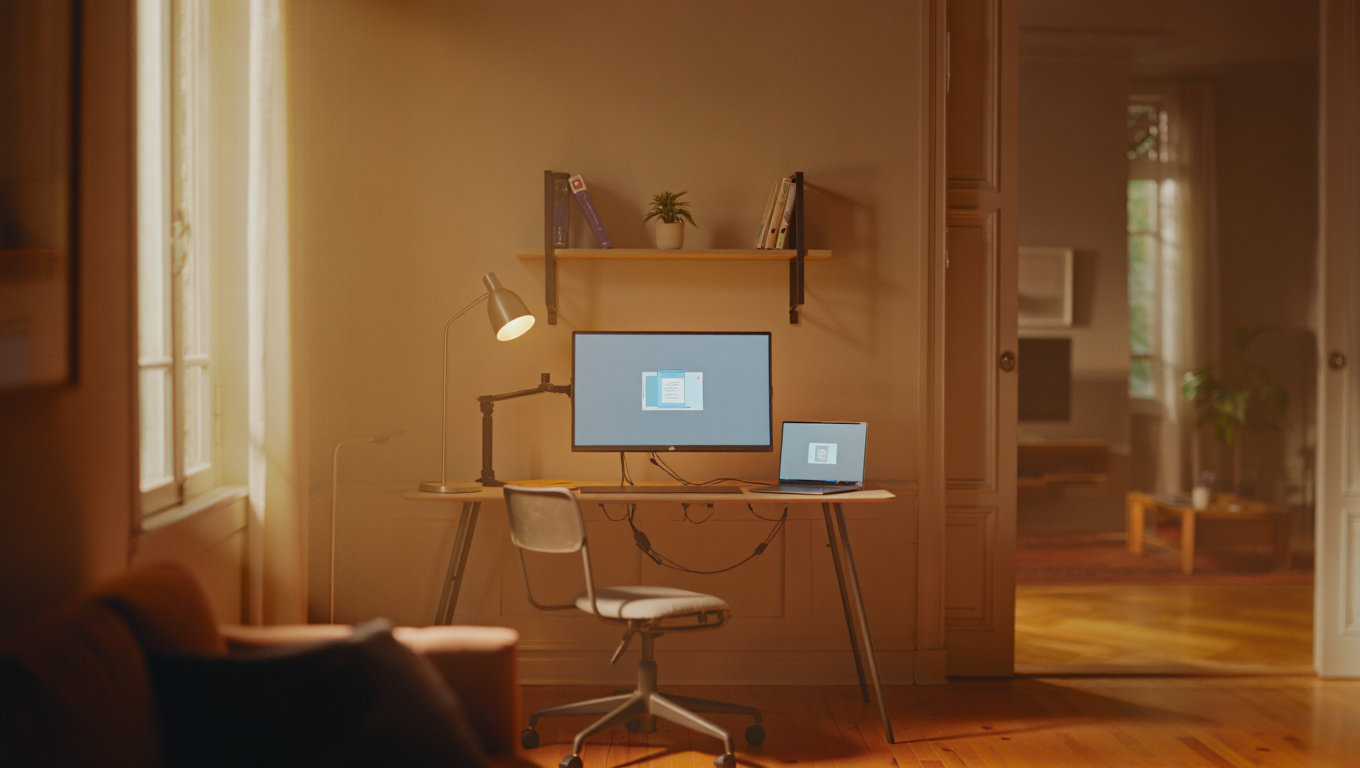
- Single ultrawide: Centered, with keyboard and mouse lined up. Place a laptop stand to the side for Slack/Spotify.
- Dual monitors: Angle both slightly inward, V-style. Or keep one horizontal, one vertical if you love reading logs.
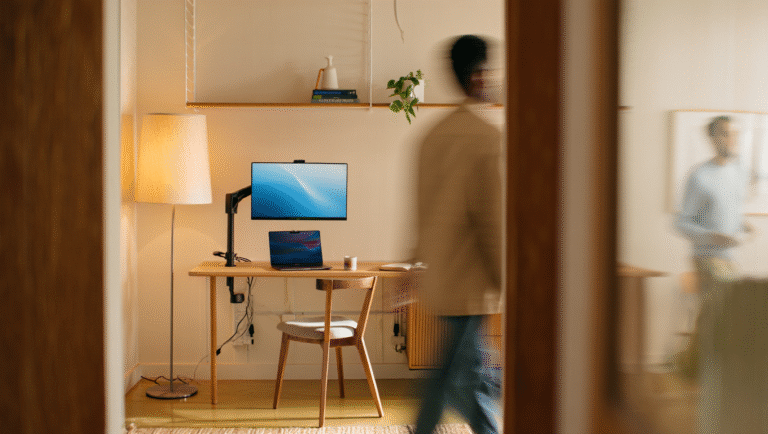
- Small desk? Use a clamp-on arm to float your screen, and stash your laptop underneath.
Checklist: 15-Minute Monitor Setup Audit
- Is your monitor(s) at eye level? If not, raise or lower it. Neck pain is not a badge of honor.
- Can you sit with elbows at 90° and feet flat? Adjust your chair or desk.
- Are you using a monitor arm? Save space and sanity.
- Is your primary window in the center of your vision? Don’t crane for code.
- Have you enabled night mode or blue light filter? Your eyes will thank you.
- Is your cable management under control? No one wants a spaghetti monster under their desk.
- Have you tried both single and dual setups? Borrow a second screen and experiment for a week.
Resources & Tools
- DisplayFusion (Windows): Advanced window snapping, multi-monitor taskbars.
- Rectangle (Mac): Free window management for snapping and splitting.
- f.lux: Blue light filtering at night.
- Ergotron: Top-tier arms for any monitor.
- IKEA Bekant: Budget-friendly standing desk options.
Life lesson: If you change your setup and nothing feels right, give it three days. Your brain (and neck) need time to adjust. And if your cat knocks over your monitor arm—well, that’s just part of the remote life.
Some links may be affiliate. You pay the same price, and this blog may earn a small commission.