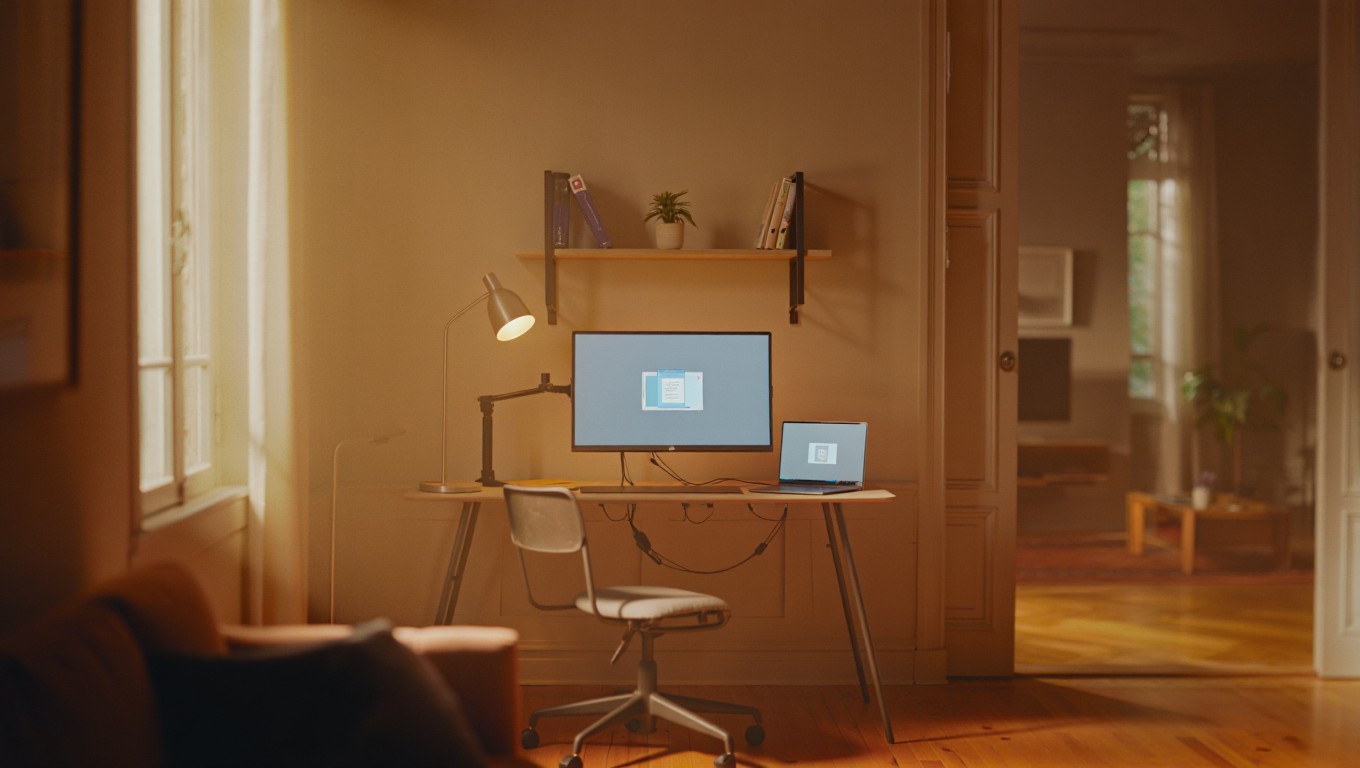
Gear Checklist: One Monitor Setup for Developers
I’ve been working remotely for about seven years now, and for most of that time, I was a proud dual-monitor zealot. But after my second move in six months (and a couple of cracked screens), I decided to see if I could thrive with just one ultrawide monitor. Spoiler: It’s not only possible—it’s actually freeing, more ergonomic, and less cable chaos. If you’re considering making the leap, here’s my hands-on, no-fluff checklist for setting up a killer single-monitor workstation as a developer.
Why Go Single? (And Why an Ultrawide?)
Let’s face it: Most devs are used to at least two screens. But there are some real perks to a one-screen setup, especially with today’s ultrawides:
- Less desk clutter: Fewer cables, fewer stands, more space for coffee (or, if you’re me, a fidget cube).
- Simpler focus: Less window-juggling, fewer distractions, more “deep work” time.
- Easier to move: One monitor is a lot easier to pack up and set up again.
- Better ergonomics: No more craning your neck between screens.
- Modern ultrawides are huge: 34–49 inches of screen is plenty for multiple windows side-by-side.
But it’s not all rainbows and unicorns. Here’s what I wish someone had told me before I started:
“An ultrawide can replace two (sometimes even three) regular monitors—but only if you set it up right. Otherwise, it’s just an expensive TV on your desk.”
The Setup: What You Actually Need
Let’s break this down into what you’ll need for a single ultrawide monitor rig that works for actual coding, not just looking cool on Instagram.
1. The Monitor
Obvious, but crucial. Here’s what to look out for:
- Size: 34″ is the sweet spot for most devs. 38″ or 49″ if you have the space (and budget).
- Resolution: 3440×1440 (for 34″) or 5120×1440 (for 49″). Avoid 1080p—it’s too pixelated for code.
- Curved vs. flat: Curved is more immersive and easier on your peripheral vision, especially above 34″.
- Refresh rate: 60Hz is fine for dev work. 120Hz+ is nice if you game or do video work.
- USB-C or Thunderbolt: If you’re on a MacBook or newer laptop, this is a game-changer for single-cable setups.
Real-world picks: I use a Dell U3421WE (34″, USB-C, KVM). LG and Samsung also make excellent options. Expect to pay $400–$1,200 depending on features.
2. Mount or Stand
Here’s where most people cheap out. Don’t. The stand that comes in the box is usually massive and eats up desk space. Invest in a sturdy VESA mount. Bonus: you can easily adjust height and tilt for better ergonomics.
- Monitor arm: Ergotron, Fully Jarvis, or HUANUO are rock-solid. Make sure it supports your monitor’s weight (ultrawides can be heavy).
- Pro tip: Clamp mounts are easier to install and don’t require drilling holes.
3. Desk and Chair
You don’t need a $1,000 standing desk, but you do want:
- At least 30″ depth so the monitor isn’t right in your face.
- Enough width for keyboard, mouse, and maybe a laptop beside the monitor.
- A chair with lumbar support. Trust me—your back will thank you after eight hours of debugging.
4. Keyboard and Mouse
Your input devices matter more than you think. You’ll be spending hours with them:
- Mechanical keyboard: Tactile, reliable, and customizable. Keychron K8 or Logitech MX Mechanical are great picks.
- Mouse: Logitech MX Master 3/3S. It’s ergonomic and supports multi-device switching if you use more than one machine.
5. Docking Station (Optional, but Awesome)
If your ultrawide supports USB-C video, you can get away with a single cable. If not, a docking station makes plugging in way easier:
- CalDigit TS4 (for Thunderbolt)
- Anker PowerExpand Elite (for USB-C/USB-A mix)
Bonus: You can leave all your cables (network, audio, charger) plugged into the dock, so you’re always ready to go.
6. Cable Management
It sounds boring, but neat cables = less stress. Use velcro straps, zip ties, or a cable tray under your desk. You can thank me later, when you aren’t tripping over a spaghetti monster.
How to Set Up Your Single-Monitor Dev Station (15-Minute Sprint)
Here’s how I set up my last workspace—minus the “kids running around with bubble guns” part:
- Place the monitor: Centered, about an arm’s length away. Top edge should be at or slightly below eye level.
- Mount the monitor: Use a VESA arm to free up desk space and adjust tilt/height.
- Connect your dock (if using): Plug in power, video, USB devices, and network cable.
- Attach keyboard and mouse: Wired is fine, but wireless means fewer cables.
- Cable management: Bundle and route cables behind the desk or along the monitor arm.
- Adjust workspace lighting: Position a desk lamp so you don’t get glare on the screen.
- Set up your software: Install a window manager (more on this below), adjust scaling, and set up your preferred color temperature (try f.lux or Windows Night Light).
Window Management: The Secret Sauce
You’re probably thinking, “But how do I keep my IDE, terminal, docs, browser, and Slack all visible?” That’s where window management software comes in. Here’s what works for me:
- Windows: PowerToys FancyZones (free)
- Mac: Rectangle (free) or Magnet (paid, cheap)
- Linux: Most tiling window managers (i3, bspwm, etc.) are made for this.
Set up zones for your main apps: I use 60% for VS Code or JetBrains IDE, 20% for browser, and 20% for chat/docs. Experiment until it feels natural.
Quick Table: Essential Gear for a Single Ultrawide Setup
| Item | Recommended Model | Approx. Price | Why I Like It |
|---|---|---|---|
| Monitor | Dell U3421WE / LG 34WN80C | $500–$900 | Sharp, curved, USB-C, perfect for code |
| Monitor Arm | Ergotron LX | $150–$250 | Rock-solid, frees up desk space |
| Keyboard | Keychron K8 / Logitech MX Mechanical | $80–$120 | Comfortable, reliable, wireless options |
| Mouse | Logitech MX Master 3 | $80–$100 | Ergonomic, multi-device |
| Dock (optional) | CalDigit TS4 / Anker PowerExpand | $200–$400 | Single-cable simplicity, tons of ports |
| Window Manager | PowerToys / Rectangle | Free | Drag-and-snap layouts for max productivity |
Tips, Tools, and a Few Lessons Learned
- Test your monitor before buying. Screens look very different in person than online. If you can, check one out at a store.
- Don’t neglect lighting. Proper lighting reduces eye strain. I use a basic LED desk lamp (about $30 on Amazon).
- Try a desk mat. Not just for aesthetics—reduces keyboard/mouse slip and makes cleanup easier.
- If you use a laptop for travel, get a stand to put it vertically when docked. Saves space and keeps things tidy.
- Window management is everything. You’ll miss dual monitors less if you set up zones for your IDE, browser, and chat.
Helpful Links & Tools
- Best Ultrawide Monitors for 2024 (DisplayNinja)
- RTINGS.com Monitor Reviews
- Ergotron Monitor Arms
- Keychron Mechanical Keyboards
- Logitech MX Master 3S
- CalDigit TS4 Dock
- Rectangle App for macOS
- PowerToys for Windows
Fun fact: I once tried to use a 49″ ultrawide on a $60 IKEA desk. The desk bowed like a banana after a week. Moral: Invest in a stable desk!
Switching to a single ultrawide monitor setup as a developer isn’t just doable—it can be a major quality-of-life upgrade. Less clutter, smoother workflow, and (if you choose the right gear) less eye strain at the end of the day. Give it a try—you might be surprised how much you don’t miss your second screen.
Some links in this post may be affiliate. You pay the same price, and this blog might earn a small commission.