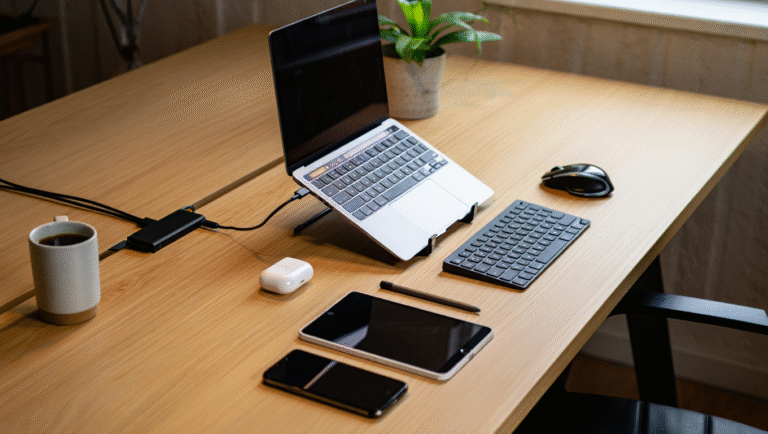
Dual-Monitor Power Setup: $1200 Balanced Build
If you’re in the trenches of remote development, you know your desk isn’t just a desk—it’s the cockpit. A comfortable, well-powered dual-monitor setup can save your back (and sanity) while keeping your code flowing. But between the endless options, price creep, and the risk of over-buying, how do you get a balanced workspace without draining your wallet?
What I Wanted—And What I Actually Needed
Here’s the context: After 18 months of working from rentals and Airbnbs, I realized my “temporary” desk gear was slowing me down. My monitors were at weird heights, I was constantly swapping cables, and the acoustics in some rooms were… let’s say “interesting.” I wanted a setup that felt solid, traveled (relatively) well, and didn’t require a home equity loan to assemble.
The goal: A dual-monitor workstation that’s ergonomic, organized, and ready for long coding sessions—without going over $1200.
Case Study: My $1200 Desk Build (With Real Prices)
Below, I’ll break down my balanced setup, line by line, with prices as of April 2024. Every item was chosen for comfort, reliability, and travel-friendliness. Where possible, I’ll suggest swaps for different needs (e.g. more portability, or more screen real-estate).
Monitors
- 2x Dell UltraSharp U2422H 24” IPS — $600 total
Why: Great color, reliable build, USB-C hub built-in, and VESA mountable. 24” is the sweet spot for side-by-side coding and docs on a regular desk.
Monitor Arms
- Ergotron LX Single Monitor Arm (x2) — $380 total
Why: Rock-solid, easy to adjust, and packs down pretty well if you ever need to move. Cheaper arms exist but tend to sag over time.
Desk Hub & Power
- Anker 575 USB-C Docking Station — $250
Why: Enough ports for everything (HDMI, DP, USB-A/C, Ethernet, SD), one-cable laptop docking, and a built-in 85W power delivery for most laptops. - Anker PowerPort Strip PD 2 Mini — $30
Why: 2 AC outlets, 2 USB-A, 1 USB-C. Mountable under the desk with 3M tape—no more crawling on the floor for your charger.
Acoustic Tweaks
- 6-pack of Hexagon Acoustic Panels — $35
Why: Lightweight, stick-on, and makes a real difference for video calls and Zoom fatigue.
Grand Total: $1,295
Okay, I went over by $95. But let’s be honest: you can save that by skipping branded arms, or picking up monitors on sale/refurbished.
15-Minute Setup Guide
- Attach arms to desk (or wall if that’s your thing). Tighten well, but don’t overdo it—move them to your preferred height later.
- Mount monitors on arms. Check VESA screws are snug. Adjust angles for a slight inward curve—reduces neck strain.
- Install the docking station on the desk surface or underneath with velcro tape. Plug everything in: monitors, laptop, keyboard, mouse, Ethernet if you use it.
- Mount the power strip under the desk using included adhesive or tape. Plug the dock and any chargers into it.
- Stick acoustic panels to the wall behind your monitors or in the “echo zone” (opposite corners work well). Don’t stress about perfect symmetry. Even a few helps.
- Tidy your cables with velcro ties or zip ties. Tip: Leave a little slack for monitor movement.
- Dial in monitor heights. Top edge of the screen should be at or just below eye level. Preview your Zoom camera—bonus points for not cutting off your forehead.
- Test your setup. Open a dozen Chrome tabs, run a build, and check for cable wobble, power drops, or weird monitor flicker. Fix as needed.
Quick-Reference Checklist
| Item | Model | Budget Option? | Travel-Friendly? |
|---|---|---|---|
| Monitor | Dell U2422H | Yes (used/refurb Dell, LG, or BenQ) | Medium |
| Monitor Arm | Ergotron LX | Yes (Amazon Basics, HUANUO) | Good (packs flat) |
| Docking Station | Anker 575 | Yes (Sabrent, UGREEN, Plugable) | Yes |
| Power Strip | Anker PD 2 Mini | Yes (Tripp Lite, Belkin) | Yes |
| Acoustic Panels | Generic Hex Panels | Yes (DIY towels, foam tiles) | Yes |
Tools and Links
- Dell U2422H Monitor
- Ergotron LX Arm
- Anker 575 Docking Station
- Anker PowerPort Strip PD 2 Mini
- Hexagon Acoustic Panels (Amazon)
- Velcro Cable Ties
Lessons Learned (& a Few Surprises)
Ergonomics are worth it. After a week with monitors on arms, my neck and shoulders thanked me. If you’re tall, do yourself a favor and get extra arm height.
The right dock is magic. No more plugging/unplugging a dozen cables when I move rooms. It’s especially handy if you’re switching between a work and personal laptop.
Acoustics matter more than I thought. I used to think sound panels were for podcasters, but even a few stuck behind your monitors cut down on echo and make video calls sound less like a bathroom.
Travel is possible (with planning). I’ve packed this kit into a medium suitcase and set up in rentals across three states. The arms and panels are the bulkiest, but it’s doable if you really want your “home” comfort on the road.
Reality check: Don’t sweat perfection. Even just raising your monitors and adding a proper dock will make a huge difference.
If you’ve been putting off your dual-monitor upgrade, this build hits the sweet spot for price, comfort, and sanity. Tweak as needed—your back will thank you.
This post may contain affiliate links. If you purchase through them, it won’t cost you extra, but it helps keep this site running.