Best Kid Tablets 2025 (Drawing + Learning)
Finding the right tablet for your kids in 2025 can feel a bit like hunting for shoes in the dark: you’re never sure if you’ll end up with something that fits, something they’ll use, or something that just collects dust under the couch. But when it comes to drawing and learning tablets, the stakes are higher—these are tools for creativity, education, and screen-time sanity. I’ve been through the search myself, and here’s what actually matters (and what doesn’t) when choosing a kids’ tablet for art and learning.
Why a Tablet for Drawing and Learning?
Let’s be honest, most of us would prefer our kids didn’t spend eight hours a day on a screen. But a good tablet can be more than a digital babysitter—it can be a portable studio, a library, and a classroom all in one. In my own family, our tablet became the “travel art kit” and “emergency math tutor” when we hit the road.
“A tablet doesn’t have to mean mindless scrolling. With the right setup, it’s a launchpad for imagination and learning.”
What to Look For (The No-Nonsense List)
Here’s what actually matters when you’re picking a tablet for your kid (ages 4-12):
- Durability: Can it survive a drop from a bunk bed?
- Parental controls: Easy to set up, hard to bypass.
- Stylus support: Essential for drawing—don’t settle for “fat finger” art.
- Education apps: Is there a good selection for your kid’s age?
- Price: You want something affordable, but not disposable.
- Battery life: Minimum 6-8 hours for road trips or rainy weekends.
- Screen size: 8-10 inches is the sweet spot for little hands and big ideas.
- Warranty/kid-proof cases: These will save your sanity (and your wallet).
Real-World Case: Three Tablets, Three Kids
Let’s break down three popular options: Amazon Fire HD Kids Edition, Huion Inspiroy Drawing Tablet, and the classic Apple iPad (9th/10th gen).
Amazon Fire HD Kids Edition
Amazon’s kids’ tablet is everywhere for a reason. It comes with a thick, grippy case, a two-year “no questions asked” warranty (seriously, my friend’s survived a pool dunk), and preloaded parental controls. You get a year of Amazon Kids+, which covers a ton of learning and drawing apps. The stylus isn’t included, but a basic capacitive pen (this one) works fine for most drawing apps.
- Pros: Bulletproof case, easy controls, huge library of content.
- Cons: Lower-res screen, not as smooth for more advanced drawing.
- Price: ~$149 (often on sale for less)
Best for:
Young kids (4–8) who need a “can’t-break-it” device for art, reading, and games.
Huion Inspiroy H640P / H950P
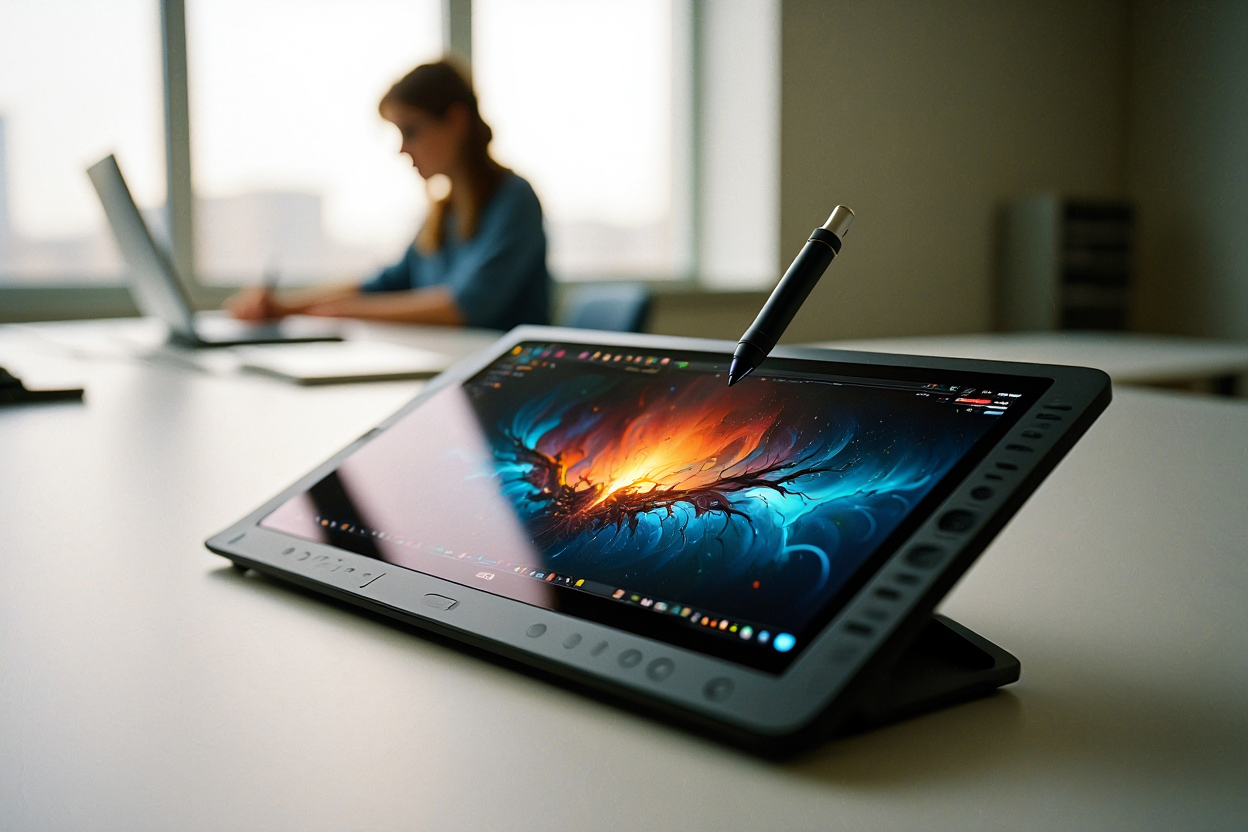
The Huion Inspiroy isn’t a standalone tablet—it’s a drawing pad that plugs into a laptop or Android phone. But it’s a game-changer for older kids who are serious about art. The stylus is pressure-sensitive (8192 levels!), and there’s no battery to charge. You’ll need to pair it with a device, but it turns any cheap Chromebook or old laptop into a digital art studio. My niece (age 11) started with the H640P and now sells her art online.
- Pros: Real pen-like feel, works with major art programs, super affordable.
- Cons: Not portable by itself, setup can be tricky for younger kids.
- Price: ~$40–$70 (see latest price)
Best for:
Older kids (8+) who want to level up from finger painting to real digital art.
Apple iPad (9th/10th Gen) + Stylus
If you want a device that does it all—drawing, learning, video editing, gaming—the iPad is the gold standard. The Apple Pencil (or a third-party stylus like this one) gives you pro-level drawing, and there’s every learning app you can imagine. The catch? It’s not cheap, and you’ll want a tough case (Otterbox is a classic).
- Pros: Best-in-class apps, smooth drawing, lasts for years.
- Cons: Pricey, not as rugged out of the box, stylus sold separately.
- Price: ~$250–$350 for the tablet, Pencil is extra.
Best for:
Kids 6+ who want a device for both school and creativity, or families who’ll share the tablet.
Quick Comparison Table
| Tablet | Best Age | Stylus | Durability | Learning Apps | Price (est.) |
|---|---|---|---|---|---|
| Amazon Fire HD Kids | 4–8 | Basic Capacitive | Excellent | Very Good | $129–$149 |
| Huion Inspiroy | 8+ | Pressure-sensitive Pen | Depends on paired device | Depends on paired device | $40–$70 |
| Apple iPad 9/10 | 6+ | Apple Pencil or 3rd-party | Good (with case) | Excellent | $250–$350 (+ stylus) |
15-Minute Setup Checklist
- Unbox & Charge: Plug it in while you do the next steps.
- Set Up Parental Controls: Go to settings, activate restrictions (screen time, age ratings, etc.).
- Install Art/Learning Apps: Try Procreate (iPad), Kids Doodle (Fire), or Krita (for Huion on PC).
- Add a Rugged Case: Seriously, do not skip this step.
- Link Your Accounts: For content sync (Amazon, Apple ID, Google).
- Test the Stylus: Make a scribble, try pressure sensitivity.
- Explain Basic Care Rules: No food, no water, and “ask before downloading.”
Top Apps and Tools
- Drawing: Procreate (iPad), Kids Doodle (Fire), Krita (PC/Android)
- Learning: Khan Academy Kids, Duolingo, Scratch
- Cases: Otterbox (iPad), Amazon Kid-Proof Case (Fire)
- Third-party Styluses: Zspeed Stylus, MEKO Universal Pen
Should You Upgrade? Honest Thoughts
Kids outgrow devices faster than shoes. If your child is just starting out, a budget-friendly Fire or Huion (with an old laptop) is more than enough. For teens or serious young artists, the iPad is worth the splurge—but only if you’ll use it, too.
Personal tip: Don’t get sucked into buying the “latest” model. Last year’s iPad, or a gently used one, works just as well for drawing and learning. Spend the extra cash on a solid case and some fun styluses instead.
Links for Quick Reference
- Amazon Fire HD Kids Edition
- Huion Inspiroy Drawing Tablet
- Apple iPad (9th/10th gen)
- Zspeed Stylus (iPad)
- Otterbox Case
“If the tablet ends up with stickers, a cracked case, and a dozen weird art apps, you did it right.”
Some links may be affiliate. You pay the same price, and this blog may earn a small commission.