Hotel Hack: Using a TV as a Second Monitor
Traveling and working remotely often means turning hotel rooms into makeshift offices. One recurring headache? Trying to code, design, or even just answer emails on a single laptop screen after getting used to a dual-monitor setup at home. Not fun. But most hotel rooms have one handy, underused resource: the TV. Here’s how to turn that big flat screen on the wall into a surprisingly effective second monitor—without a suitcase full of tech gear.
Landing at the Hotel: The “One-Screen Blues”
Picture this: It’s 9 PM, you just checked in after a long drive. You open your laptop, ready to catch up on work before tomorrow’s meetings. Within ten minutes, you miss your second monitor like an old friend. You scan the room. There’s a big TV facing the bed, a remote control, and that’s about it. So, what now?
“I’ve coded entire features from a hotel bed with the TV as my second screen. It’s not glamorous, but it works—and sometimes beats hunting for a co-working space at 10 PM in a new city.”
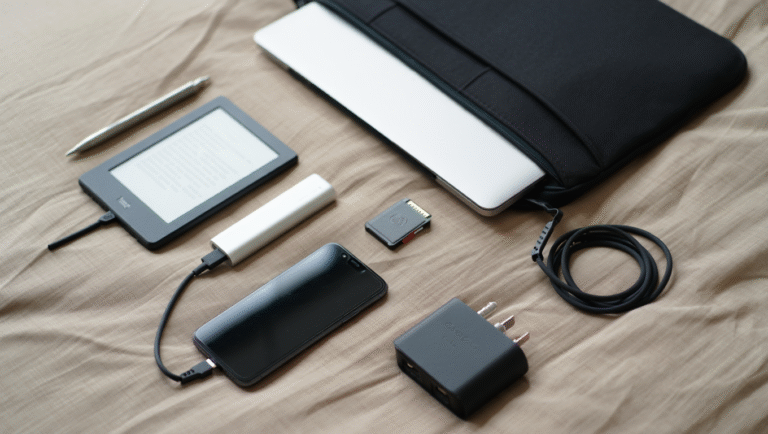
What You Need: The Minimalist’s Checklist
- Laptop with HDMI or USB-C output (most modern machines have one or both)
- HDMI cable (2 meters is ideal)
- If you have USB-C only: USB-C to HDMI adapter (small, cheap, weighs nothing)
- Optional: Wireless mouse/keyboard (if you like working from the bed or couch)
You can get an HDMI cable at most airports, big box stores, or even some hotel lobbies. I keep a braided 2-meter cable in my bag, because it’s survived years of travel abuse.
Step-by-Step: Turning Hotel TV into a Second Monitor
-
Find the HDMI port on the TV. Usually, it’s on the side or back. Sometimes it’s labeled “HDMI 1” or “HDMI 2”.
Tip: If it’s wall-mounted and hard to reach, use your phone as a flashlight. Some hotels are thoughtful and install ports on the desk or dresser. - Plug in your HDMI cable. Connect one end to your laptop, the other to the TV. If you’re using USB-C, attach the adapter and then plug in HDMI.
- Switch the TV input. Grab the remote and hit the “Input” or “Source” button. Cycle through until you see your laptop screen.
- Configure display settings. On Windows, hit Win + P and choose “Extend”. On Mac, go to System Preferences > Displays and select “Extend Desktop”.
- Adjust scaling and resolution. Most hotel TVs are 1080p, but some are 4K. If your desktop icons are huge or tiny, adjust scaling in display settings. For text, 125–150% scaling usually does the trick.
- Drag your windows across. Now you can put Slack, email, or Chrome on the TV while keeping your code editor (or whatever you need most) on the laptop screen.
Common Issues (and Fast Fixes)
- No signal? Double-check the HDMI input and cable connection. Some TVs need a few seconds to recognize the source.
- TV won’t show your screen? Try unplugging and plugging in the HDMI again, or restarting your laptop while connected.
- Audio suddenly comes from TV? On Windows, right-click the sound icon, set your laptop speakers as default. On Mac, go to Sound settings.
- TV crops or stretches image? Look for “Picture Size” or “Aspect Ratio” on the TV menu. Set it to “Just Scan” or “1:1” for the correct display.
Reality Check: Pros and Cons
| Pros | Cons |
|---|---|
| Big screen for multitasking | TVs often have poor color accuracy (not great for design work) |
| Free (if you already have a cable) | Input lag can make gaming impossible |
| Available in almost every hotel room | Sometimes awkward to work from the bed or across the room |
| Easy to set up in under 5 minutes | Some TVs are locked down or have hard-to-reach ports |
Quick Reference: Hotel TV Second Monitor Checklist
- HDMI cable (2m is plenty)
- USB-C to HDMI adapter (if needed)
- Check TV for accessible HDMI port
- Switch TV input/source
- Configure “Extend Desktop” on laptop
- Adjust scaling for readability
- Optional: Wireless mouse/keyboard for comfort
Handy Tools & Links
- USB-C to HDMI adapters (Amazon)
- How to locate HDMI ports on hotel TVs
- Guide: Extend display on Windows
- Guide: Use external displays with Mac
- Wireless travel mice (Logitech)
When It’s Worth It (and When It’s Not)
There are times when this hack is a lifesaver—especially if you’re working late, prepping slides, or need to keep an eye on comms while working in a code window. But for color-critical work (photo editing, video grading), hotel TVs can be a letdown. And if you’re a night owl coding in a studio with a tiny 24” TV high up on the wall, you may find yourself with a stiff neck and regrets.
The first time I tried this, I spent 15 minutes crawling under a dresser, only to discover the TV had no accessible ports. Lesson learned: check before you unpack your whole bag.
But most of the time? It’s a fast, reliable way to get that second screen back, even if you’re hundreds of miles from your home setup. Bonus: you’ll never look at a hotel TV the same way again.
This post may contain affiliate links. If you purchase through them, it won’t cost you extra, but it helps keep this site running.