Home Office Ergonomics That Actually Work
Let’s be honest: when most people think “ergonomics,” their minds go straight to expensive chairs, endless product recommendations, and a vague sense of guilt about their posture. Been there. But after a few years working remotely across a questionable range of kitchen tables, rented apartments, and the occasional picnic bench, I can tell you—ergonomics isn’t about perfection. It’s about small, real fixes that stop you from turning into the Hunchback of Notre Dame by age 40.
Why Ergonomics Isn’t Just Corporate Fluff
It took me exactly one winter hunched over a coffee table in Asheville to realize something: your body keeps score. The “back twinge” you ignore on Monday becomes a full-blown “can’t sit without wincing” by Friday. But, here’s the myth: you don’t need a $1,000 chair to fix it. What you really need are tiny, fast tweaks you can implement in under 15 minutes, even if your office is half a suitcase.
“I thought I could tough it out until my neck started clicking every time I turned my head. Turns out, ignoring ergonomics is like ignoring your car’s oil light—you’ll pay for it sooner or later.”
The Real Checklist: 15-Minute Ergonomic Wins
Let’s cut through the noise. Here’s what actually works, myth-busting included:
- Chair Height: Your feet should rest flat on the floor. If they don’t, stack some books or grab a footrest. (I’ve used a shoebox more than once.)
- Monitor Position: Top of the screen = eye level. No, not “almost”—exactly eye level. Use a laptop stand, or a pile of old textbooks. Your neck will thank you.
- Arm Support: Forearms parallel to the floor. Adjust your chair or desk. If you’re typing with wrists bent up or down, you’re asking for trouble.
- Breaks (Real Ones): Every 25-30 minutes, stand up and stretch. Set a timer if you have to. Yes, even if you’re “in the zone.”
- Lighting: Natural light is best, but avoid glare. Position your monitor perpendicular to windows if possible.
- Keyboard & Mouse: Keep them close. You shouldn’t have to reach or twist. Wireless options are great for tight spaces.
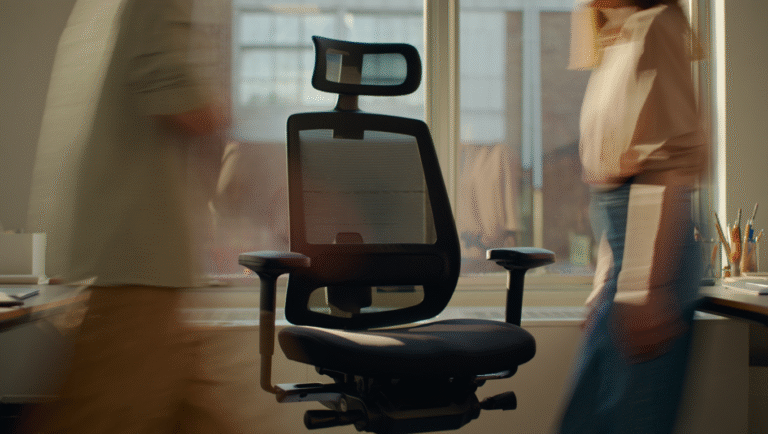
- Back Support: If your chair doesn’t support your lower back, roll up a towel or use a cushion. No shame in the DIY game.
Myth vs. Reality: What You Don’t Need
- Myth: You need a fancy standing desk.
Reality: Standing is great, but frequent movement is better. Alternate sitting and standing if you can, but don’t stress if you can’t. - Myth: Only expensive chairs are ergonomic.
Reality: It’s about setup, not price tag. I’ve worked comfortably from a $30 IKEA chair with a pillow and a sense of purpose. - Myth: Posture fixes itself if you buy the right gear.
Reality: No product will force you to take breaks or sit up straight. That’s on you (and your timer app).
How to Set Up Your Space in 15 Minutes
Here’s how I walk into a new Airbnb and turn it into a pain-free office—without fancy gear:
- Find the best chair + table combo. Look for one where your elbows can bend at 90 degrees. If that’s not possible, improvise with cushions or books.
- Raise the laptop. Use a stand or whatever’s handy (cookbooks, shoeboxes). Plug in a keyboard if you have one.
- Check the lighting. Move the setup so the light isn’t glaring into your eyes or bouncing off the screen.
- Add back support. Roll up a towel or use a small pillow behind your lower back.
- Position the monitor. The top should be at eye level, and about an arm’s length away.
- Set a timer for breaks. Use your phone or a browser extension like Pomofocus or Tomato Timer.
- Test and adjust. Sit down, type for a few minutes, and notice if anything feels off. Adjust as needed. Don’t overthink it.
Quick Reference Table: Ergonomics At a Glance
| Fix | Quick Test | DIY Solution |
|---|---|---|
| Chair Height | Feet flat, knees ~90° | Books, shoebox, pillow |
| Monitor Position | Top at eye level | Stack books, use stand |
| Arm Support | Forearms parallel | Adjust chair/table height |
| Breaks | Stand every 30 min | Timer app, phone alarm |
| Back Support | No slouching, lower back supported | Rolled towel, cushion |
Tools & Links That Actually Help
- Ergonomic Trends: Home Office Setup Guide
- Office Stretching Guide
- Cold Turkey (for break reminders/distraction blocking)
- Simple Laptop Stand
- Remote Worker Ergonomics Tips
Pro tip: If you’re traveling, pack a foldable laptop stand and a lightweight keyboard. Takes up almost no space and makes any desk ergonomic in under two minutes.
Real-Life Fix: My “Chairless” Week
Last fall, I spent a week working from a cabin with only bar stools and a picnic bench. My back was not thrilled. After day one, I stacked two cushions on the bench, rolled up a blanket for lumbar support, and used a cooler as a footrest. Not glamorous, but way better than the alternative. Sometimes, “good enough” is all you need.
What Actually Matters
After years of remote work, here’s what I wish I’d learned sooner:
- You don’t need perfect posture 24/7—just change positions often.
- Breaks are more important than gear. Move every 30 minutes, even if it’s just to get water.
- DIY hacks beat expensive gadgets. Don’t wait for the “perfect” setup to get comfortable.
- Listen to your body. Aches are information, not a badge of honor.
Ergonomics isn’t about impressing anyone. It’s about not needing an ice pack at 5pm. Try a few of these tweaks, and you might just find yourself looking forward to sitting down to work—wherever you happen to be.
This post may contain affiliate links. If you purchase through them, it won’t cost you extra, but it helps keep this site running.