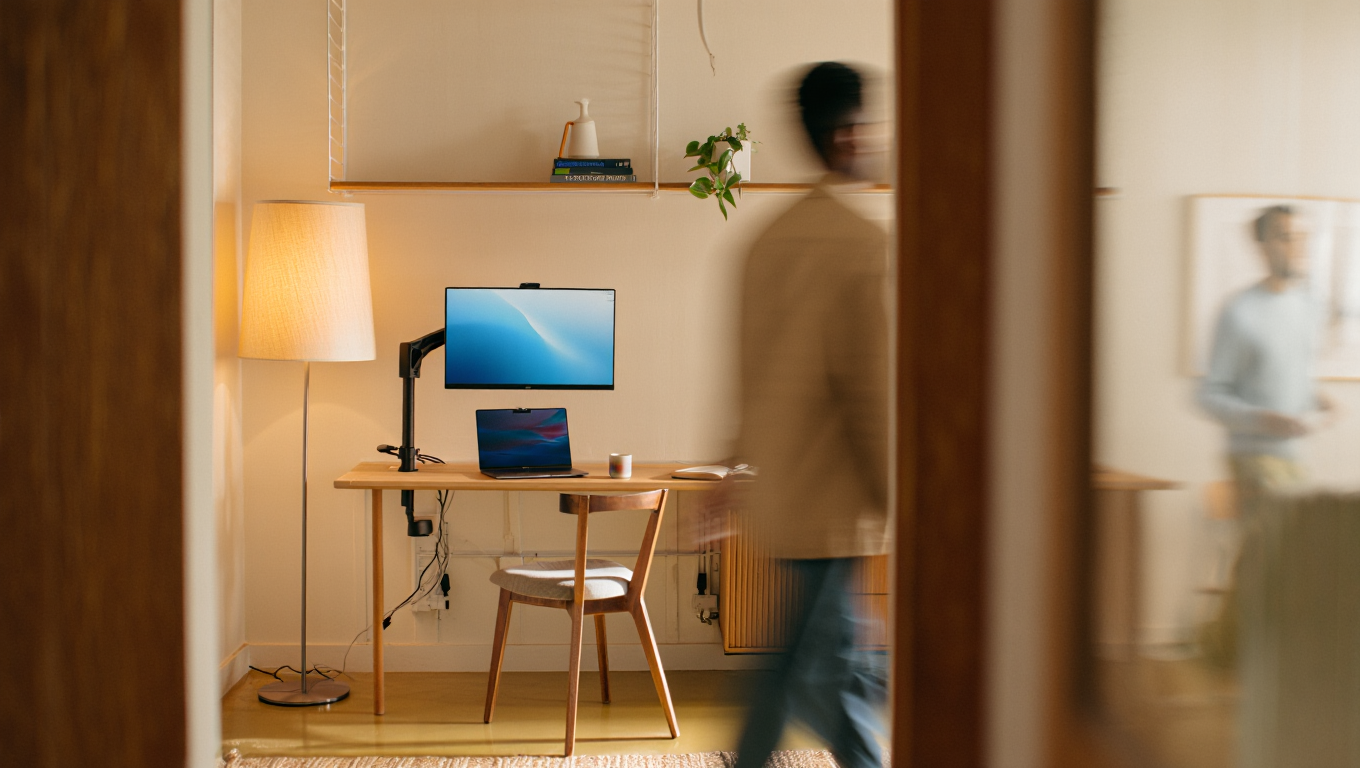
Gear Checklist: One Monitor Setup for Developers
If you’re a developer, there’s a good chance you’ve been tempted by photos of “command center” setups: three monitors, RGB everywhere, and enough USB cables to knit a hammock. But let’s be real—sometimes less is more. After six years of remote work (and a few dozen Airbnbs), I’ve become a big fan of the one monitor setup, especially with a single ultrawide.
Let’s break down what makes this approach practical, what to watch out for, and how to get everything dialed in, fast. No fluff—just what works when you don’t want your workspace to take over your whole house or travel bag.
Why Go Single? (And Why Ultrawide?)
There’s an old joke in the dev world: “Give a programmer two monitors and they’ll ask for a third.” But I found that a single, well-chosen ultrawide can actually increase focus and flexibility, especially if you work from different places or value a tidy desk.
True story: In 2022, I moved my family into an RV for eight months. Dual monitors? Not going to happen. The ultrawide was a game changer—one plug, one screen, and no arguments about table space.
- Less desk clutter: Fewer cables, fewer stands, less mess.
- Portable (relatively): Easier to pack and move. Yes, it fits in a car—ask me how I know.
- Focus: One screen, fewer distractions. Makes context-switching less tempting.
- Flexibility: Modern ultrawides support multiple windows, PiP, and even KVM switches.
But let’s keep it honest—there are some trade-offs. You may miss the physical separation of screens, and not every app handles ultrawide gracefully. That said, if you pick the right gear and set it up smartly, it’s a power move.
My Go-To Setup: The Real-World Basics
Here’s what I use (and what I recommend, based on a lot of trial, error, and spilled coffee):
| Gear | Why It Works | What to Watch For |
|---|---|---|
| Ultrawide Monitor (34”–38”, 1440p+) | Room for two apps side-by-side, extra vertical space | Check compatibility with your laptop GPU |
| Monitor Arm | Frees up desk space, easy to reposition | Make sure it supports the monitor’s weight (some ultrawides are heavy!) |
| USB-C Dock | One cable to rule them all—power, display, peripherals | Not all docks support 100W charging or 4K/60Hz output |
| Wireless Keyboard & Mouse | Reduces desk clutter, makes quick repositioning easy | Keep batteries/charging cables handy |
| Webcam (clip-on) | Better angle, less neck strain in calls | Some ultrawides have thick bezels—check fit |
| Desk Lamp (dimmable) | Reduces eye strain for late-night sprints | Go for adjustable color temp if possible |
| Laptop Stand (optional) | Use as a backup screen, or just for Zoom calls | Only if you need a secondary display—don’t clutter by default |
Setting Up in 15 Minutes: Step-by-Step
- Unbox and assemble the monitor. If you’re using a monitor arm, attach it before you put the monitor on your desk. Trust me, your back will thank you.
- Connect USB-C dock to your laptop. Plug in the monitor, keyboard, mouse, and webcam to the dock. One cable to your laptop = instant productivity.
- Adjust monitor height and tilt. Your eyes should be level with the top third of the screen. If you’re craning your neck, fix it now—future you will thank you.
- Arrange windows with built-in tools. On Windows, use Windows Snap Assist. On macOS, try Rectangle (free) or Magnet (paid). For Linux, tiling window managers are your friend.
- Check color and brightness settings. Most ultrawides are too bright out of the box. Set brightness to 80–120 nits if you work all day.
- Add accessories. Place the lamp, adjust the keyboard/mouse, and plug in your webcam. Optional: stick on some cable organizers to keep things tidy.
- Test video calls and screen sharing. Open Zoom or Teams, share your screen, and make sure text isn’t microscopic. (Been there. Not fun.)
Quick Checklist: What You Need for a One-Monitor Dev Setup
- Ultrawide monitor (minimum 34”, 1440p or higher)
- Monitor arm (rated for your monitor’s weight)
- USB-C dock/hub with power delivery
- Wireless keyboard & mouse
- Clip-on webcam
- Dimmable desk lamp
- Laptop stand (optional)
- Cable organizers (Velcro ties or adhesive clips)
- Window management software (Rectangle, Magnet, FancyZones, etc.)
- Backup HDMI or DisplayPort cable (just in case)
Recommended Gear and Tools (Based on Actual Mileage)
Here are some picks that have held up to hard use and frequent moves:
- LG 34WN80C-B – Reliable, affordable, USB-C input. 34” is the sweet spot for price and portability. Check on Amazon
- Ergotron LX Monitor Arm – Sturdy, adjustable, and doesn’t sag over time. See details
- CalDigit TS4 Dock – The gold standard if you need all the ports and rock-solid charging. Current price
- Keychron K2 Wireless Mechanical Keyboard – Works with Mac/PC, small footprint, feels great to type on. More info
- Logitech MX Master 3S Mouse – Quiet, ergonomic, and multi-device support. See on Amazon
- BenQ ScreenBar – Minimalist desk lamp that clips on your monitor. Buy here
- Rectangle App (macOS) – Free, open-source window management. Download
- FancyZones (Windows) – Included in Microsoft PowerToys. Setup guide
Prices change, so always double-check before buying. If you want to go cheaper, look for used/refurb models—ultrawides don’t age as fast as laptops.
Common Pitfalls (And How to Dodge Them)
- Monitor arm not rated for your ultrawide? Double-check the specs. Many arms cap at 20 lbs, but some ultrawides are heavier.
- USB-C dock doesn’t charge at full speed? Make sure it supports your laptop’s wattage. Undersized docks = slow charging or no charge at all.
- Text is too small? Adjust OS scaling (125–150% works for most 34” ultrawides). Don’t suffer—life’s too short to squint.
- Color looks weird? Calibrate if possible, or at least set to sRGB mode for coding/design work.
Final Thoughts
One monitor doesn’t mean less productivity—in fact, it can be a superpower once you tweak the setup to your workflow. I’ve shipped projects from kitchen tables, RVs, and tiny city apartments with this approach. If you want a setup that’s both powerful and portable, give the ultrawide a shot. It’s less about the gear and more about how you use it.
Some links may be affiliate. You pay the same price, and this blog may earn a small commission.