Best Budget-Friendly Gear for Remote Workers in 2023
Let’s be honest—working from home sounds great until you realize your kitchen chair is slowly destroying your back and your “trusty” laptop wheezes every time you open a video call. Over the past few years, I’ve tested gear in Airbnbs, co-working spaces, family guest rooms, and the occasional coffee shop with questionable Wi-Fi. The good news? You don’t need to drop a fortune to set up a comfortable, productive home office.
Laptop Heroes: Power Without the Price Tag
If you’re like me—splitting days between code, video calls, and a dozen Chrome tabs—you need a laptop that won’t freeze every time you open Figma or Notion. The sweet spot for most remote workers is under $1000. It’s where performance meets value.
Top Picks for 2023
- Acer Swift 3 (AMD Ryzen 7, 14”): About $700-800. Lightweight, all-day battery, reliable performance. Handles Zoom, VS Code, and Spotify like a champ. Downsides? Speakers are just okay.
- Lenovo IdeaPad Flex 5 (AMD Ryzen 5, 14”): $600-700. 2-in-1 flexibility, solid keyboard, and a bright screen. Not the flashiest, but it’s a workhorse.
- Apple MacBook Air M1 (Refurbished): $850-950. Still fast, fanless and silent, and battery for days. Cons: Less ports, but adapters are cheap.
Real-life note: My wife’s Swift 3 has survived three countries, two toddler tantrums, and at least one bad coffee spill. Still faster than my old desktop.
“If you’re debating between extra RAM or a shinier screen, always pick the RAM. It’s the difference between ‘smooth day’ and ‘where did my Zoom call go?’”
Monitor Magic: Clarity Without the Cost
Second screens save lives (and necks). But you don’t need a 4K monster. For under $300, you can get a 24-27” IPS monitor with solid color and sharp text—perfect for code, docs, or Netflix on your lunch break.
Best Budget Monitors
- ASUS ProArt Display PA278QV (27”): $299. Amazing color accuracy, height-adjustable stand, and USB hub. Pro: Great for creative work. Con: Just barely under $300, but often on sale.
- Dell P2419H (24”): $180-200. Solid build, thin bezels, and a stand that actually moves up/down. Pro: Lots of ports. Con: Not the brightest, but fine for indoor use.
- AOC 27B2H (27”): $140-170. Simple, big, and bright enough for almost any task. Pro: Super affordable. Con: No height adjustment and basic stand.
Tip: If you’re tight on desk space, look for a VESA-mountable monitor and a cheap arm ($25-40 on Amazon). Suddenly, your desk feels twice as big.
Chairs: Save Your Back, Not Break the Bank
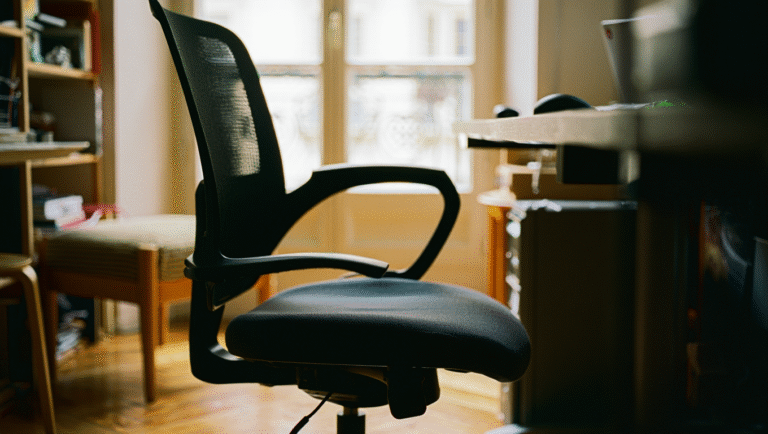
I used to think an office chair was a luxury. After a few months of “dining chair ergonomics,” I changed my mind—and got a chiropractor bill as a souvenir. For under $250, you can get a chair that won’t sabotage your spine.
Best Chairs Under $250
- Hon Ignition 2.0: $220-250. Firm mesh back, adjustable everything, and a seat that won’t go flat. Pro: Durable. Con: Assembly takes some patience.
- SIHOO Ergonomic Chair: $180-210. Surprisingly supportive, adjustable lumbar, and headrest. Pro: Looks modern. Con: Armrests feel a bit wobbly.
- IKEA Markus: $199. Tall back, decent padding, and a reputation for lasting years. Pro: Sleek. Con: Lumbar support isn’t adjustable.
“If you can’t test the chair in store, read reviews from people who are your height—what works for a 6’1” person might be awful if you’re 5’4”. I learned this the hard way in Lisbon.”
Quick Comparison Table
| Type | Model | Price Range | Pros | Cons |
|---|---|---|---|---|
| Laptop | Acer Swift 3 | $700-800 | Fast, light, long battery | Average speakers |
| Laptop | Lenovo IdeaPad Flex 5 | $600-700 | 2-in-1, solid keyboard | Plain design |
| Laptop | MacBook Air M1 (Refurb) | $850-950 | Silent, great battery | Few ports |
| Monitor | ASUS ProArt PA278QV | $299 | Color accuracy, USB hub | Pricey for category |
| Monitor | Dell P2419H | $180-200 | Great stand, ports | Not very bright |
| Monitor | AOC 27B2H | $140-170 | Big, affordable | Basic stand |
| Chair | Hon Ignition 2.0 | $220-250 | Durable, adjustable | Assembly |
| Chair | SIHOO Ergonomic | $180-210 | Lumbar, headrest | Wobbly arms |
| Chair | IKEA Markus | $199 | Tall, comfy | No lumbar adjust |
15-Minute Setup Checklist
- Assess your needs: What takes up most of your day—video calls, documents, design?
- Pick your main device: Stick to laptops with at least 8GB RAM, SSD, and decent battery.
- Choose a monitor: Aim for IPS panel, 24-27”, and VESA mount compatibility if possible.
- Upgrade your chair: Prioritize lumbar support and adjustable height. Even the best chair needs breaks—set a timer every hour.
- Order in bundles: Many online shops offer discounts if you buy more than one item.
- Save receipts: Many expenses may be tax deductible if you freelance or work remotely full-time. (Check your local laws!)
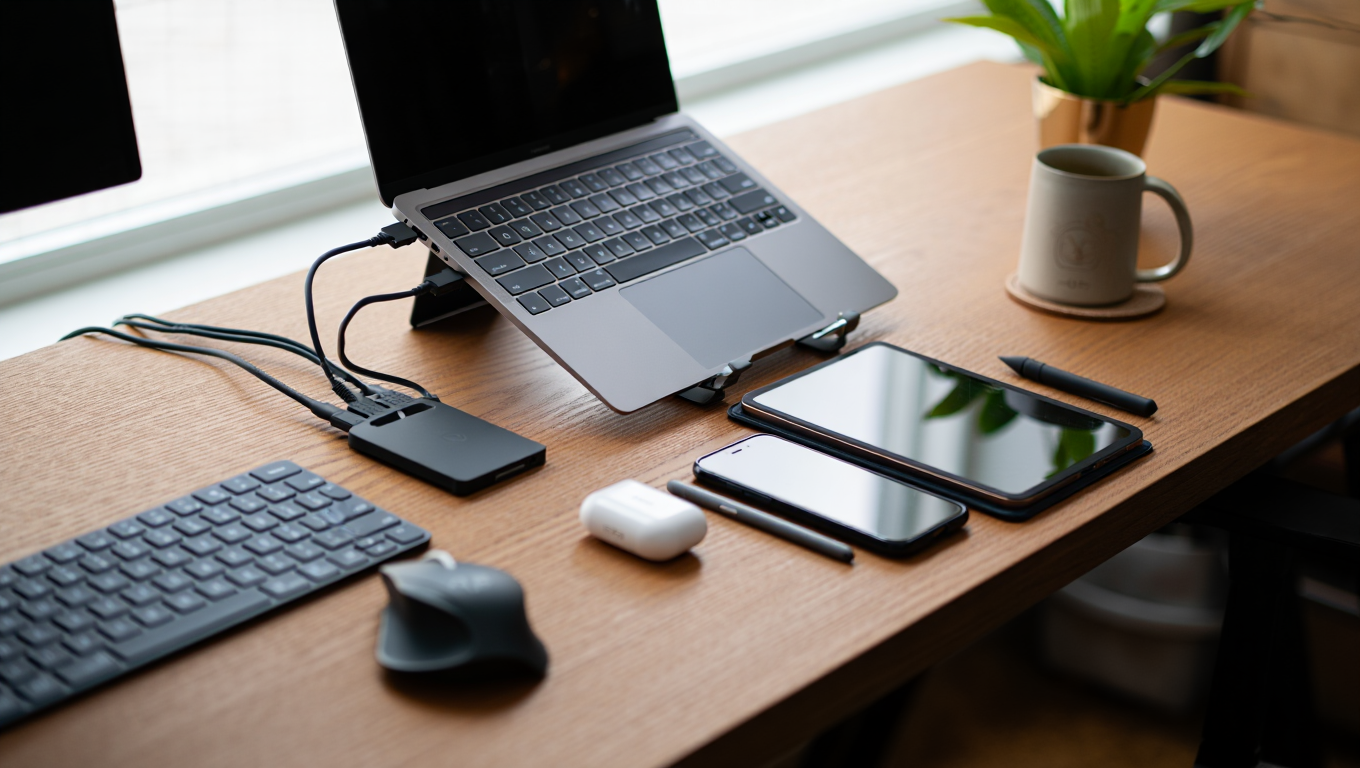
- Bonus: Invest $20-30 in a decent keyboard and mouse combo. Your wrists will thank you.
Tools & Resources
- Amazon – For quick deals and bundles.
- Newegg – Laptops and monitors, often with open-box discounts.
- IKEA – Reliable and affordable chairs.
- Slickdeals – Hunt for flash sales on gear.
- RTINGS: Best Monitors Under $300
- Reddit: r/Workspaces – Real setups and honest reviews.
Final Thoughts
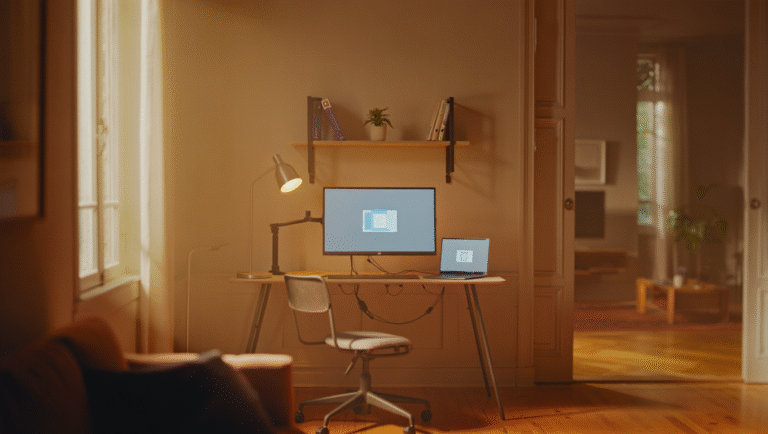
You don’t need a $2000 setup to work well from home. Invest in a comfortable chair, a laptop that won’t crash mid-call, and a monitor that lets you see without squinting. Your back, eyes, and wallet will thank you.
Some links above may be affiliate links. You pay the same price, and this blog may earn a small commission—thanks for supporting more real-world gear guides!